Getting Started · Step 5 of 5
Application Setup
Connect your credentials, authorize Discord, select a character, create a portrait, and send your first live widget update.
Before you begin
Have your Blizzard Client ID and Client Secret, Discord Application ID, Discord Client Secret, and Discord Bot Token ready. Download the latest build from GitHub Releases if WoWidget is not already installed.
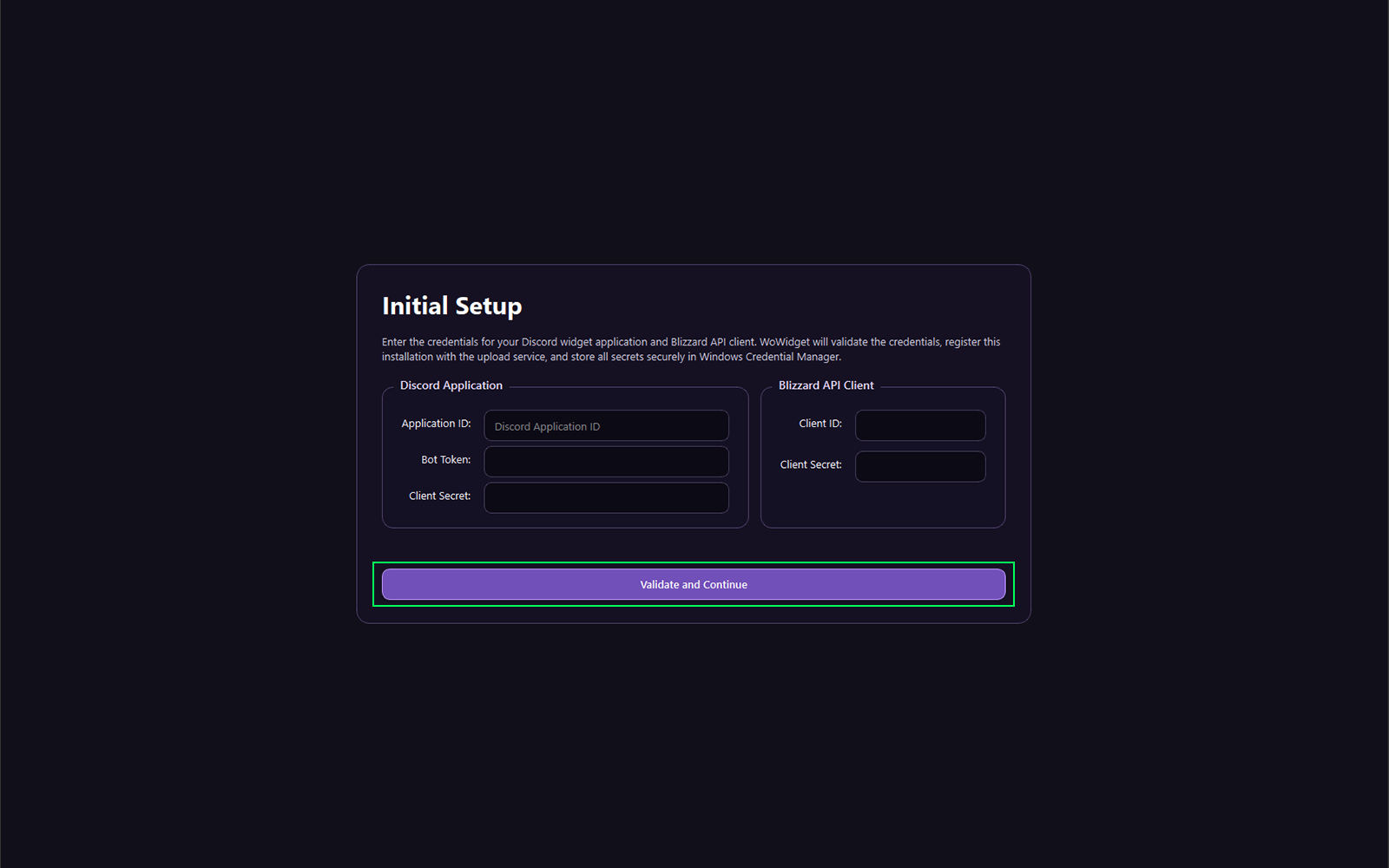
Enter your credentials
Paste each credential into the matching WoWidget field, then select Validate and Continue once.
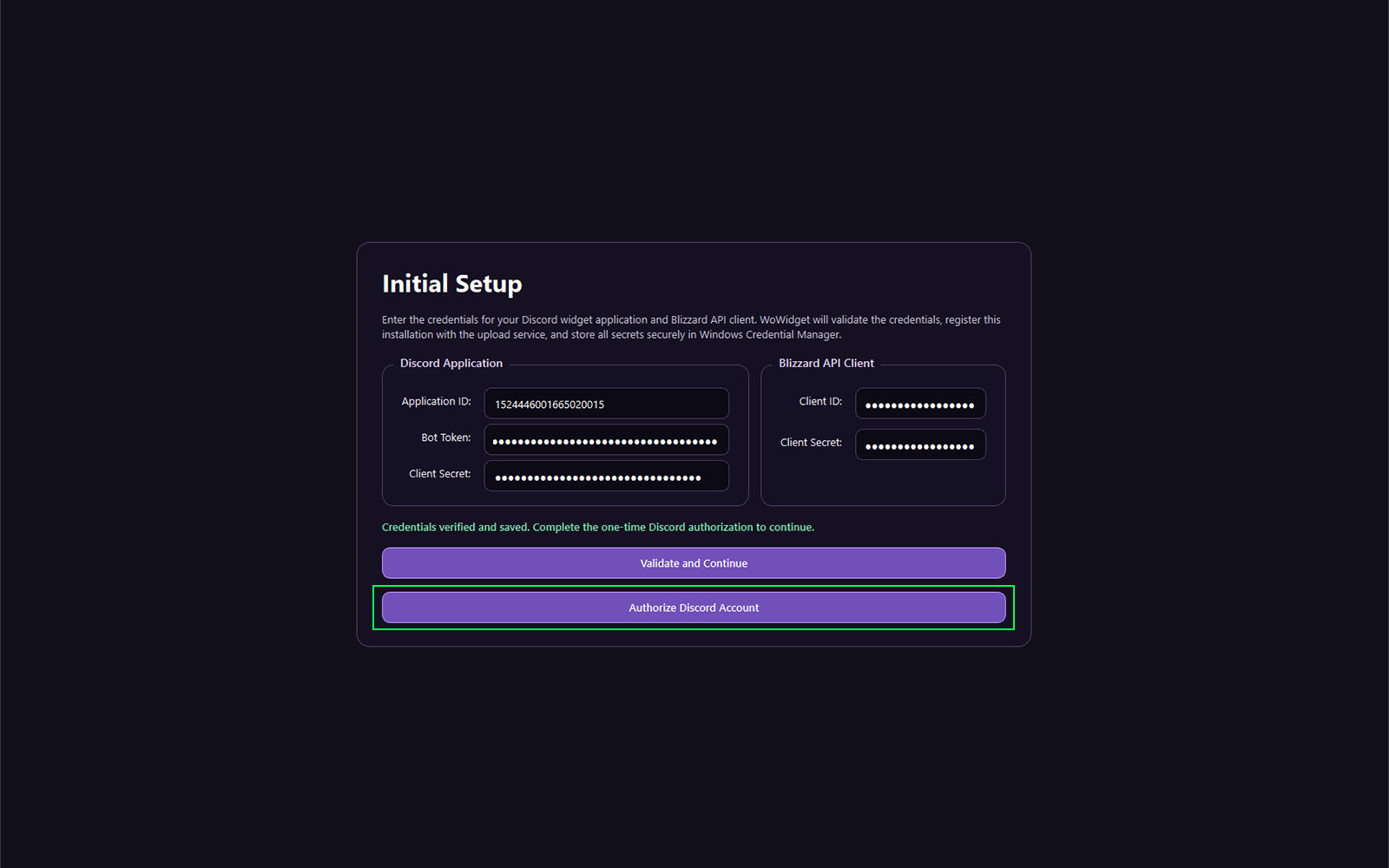
Authorize Discord
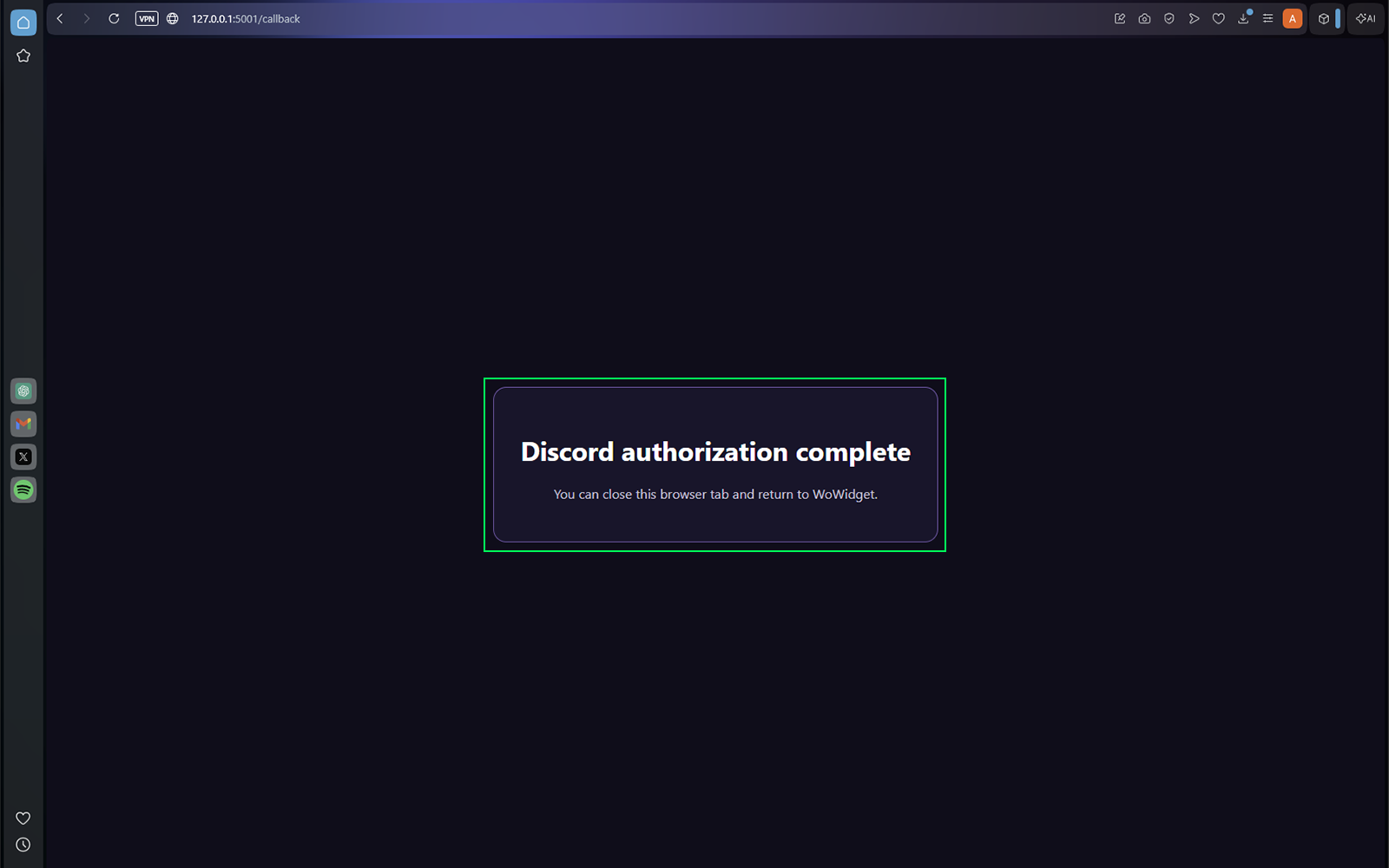
When Authorize your Discord appears, select it. Your browser will open an authorization request for the Discord application you created. Approve the request, then return to WoWidget.
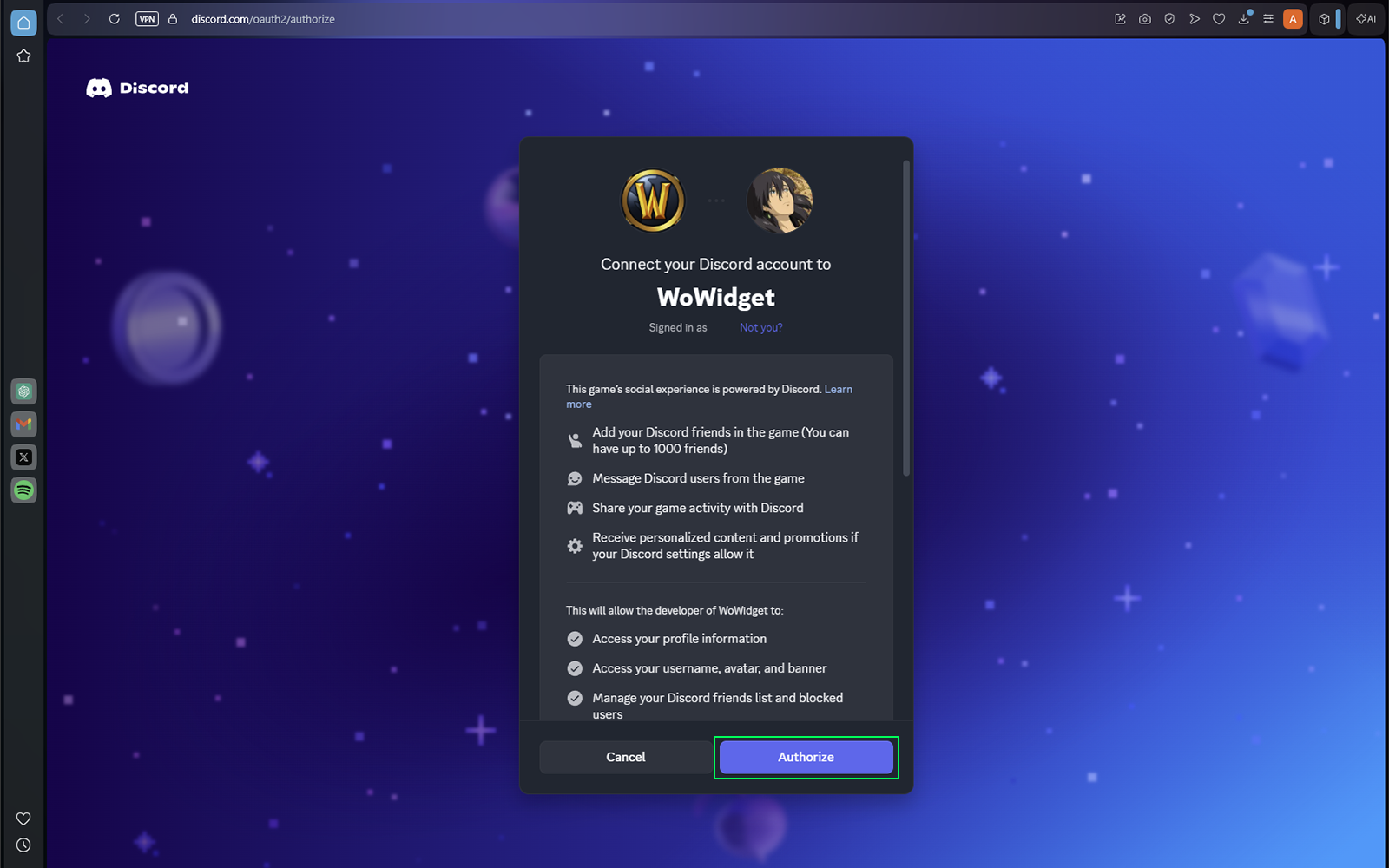
Why does Discord request several permissions?
Discord currently groups Social SDK functionality into one authorization scope. WoWidget uses the Widget-related functionality, but Discord may display the broader Social SDK permission set. Because you created and own the application, you are authorizing your own Discord application.
Authorization cancelled
If you see Discord Authorization Cancelled or an invalid-scope error, complete Discord Setup, Step 5 and try again.
Select your character
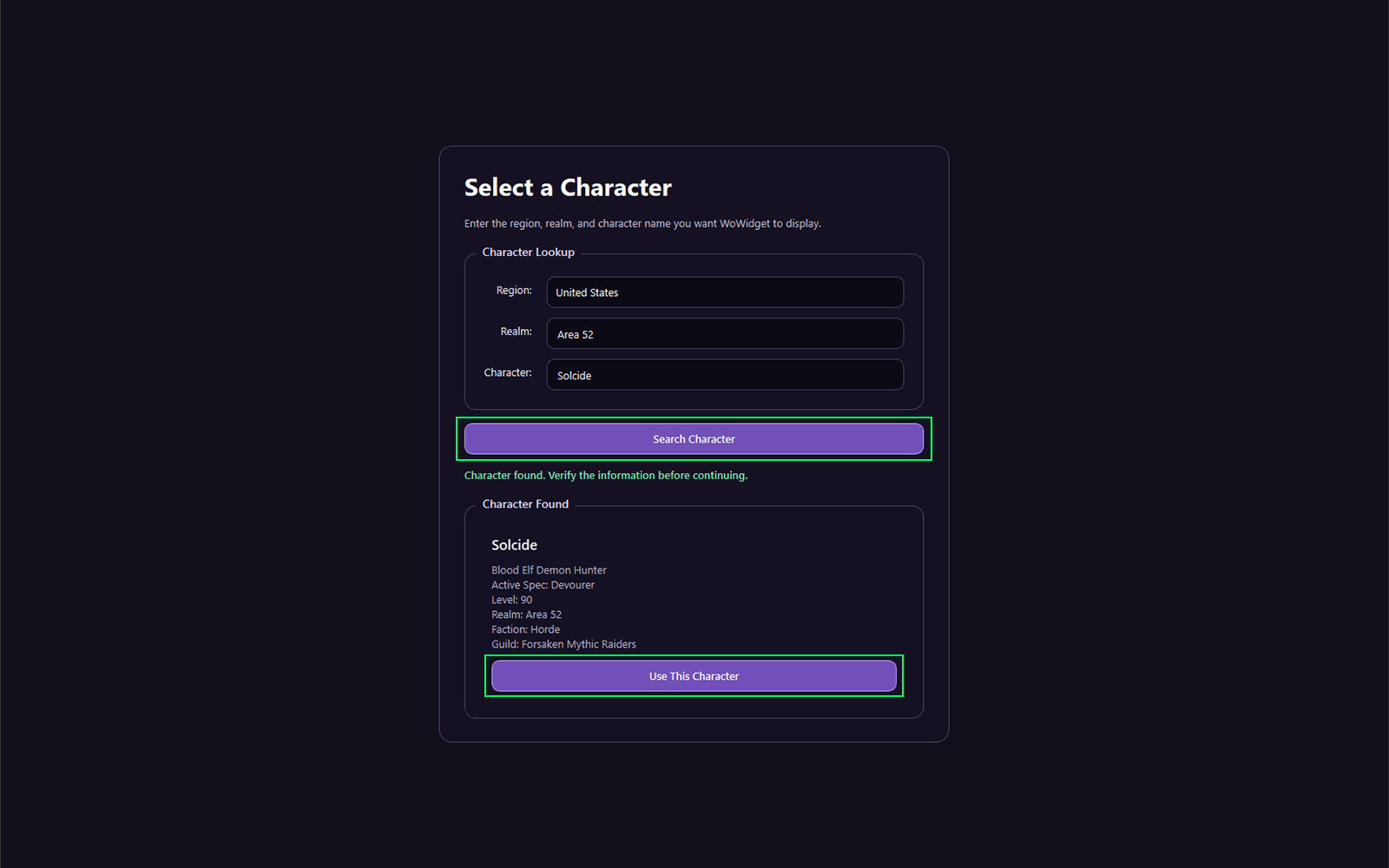
Search for the character you want to display. Verify the name, realm, class, and other returned information, then select Use this Character.
Use characters responsibly
Display a character you own or have permission to use. Avoid impersonating other players.
Create the portrait and update the widget
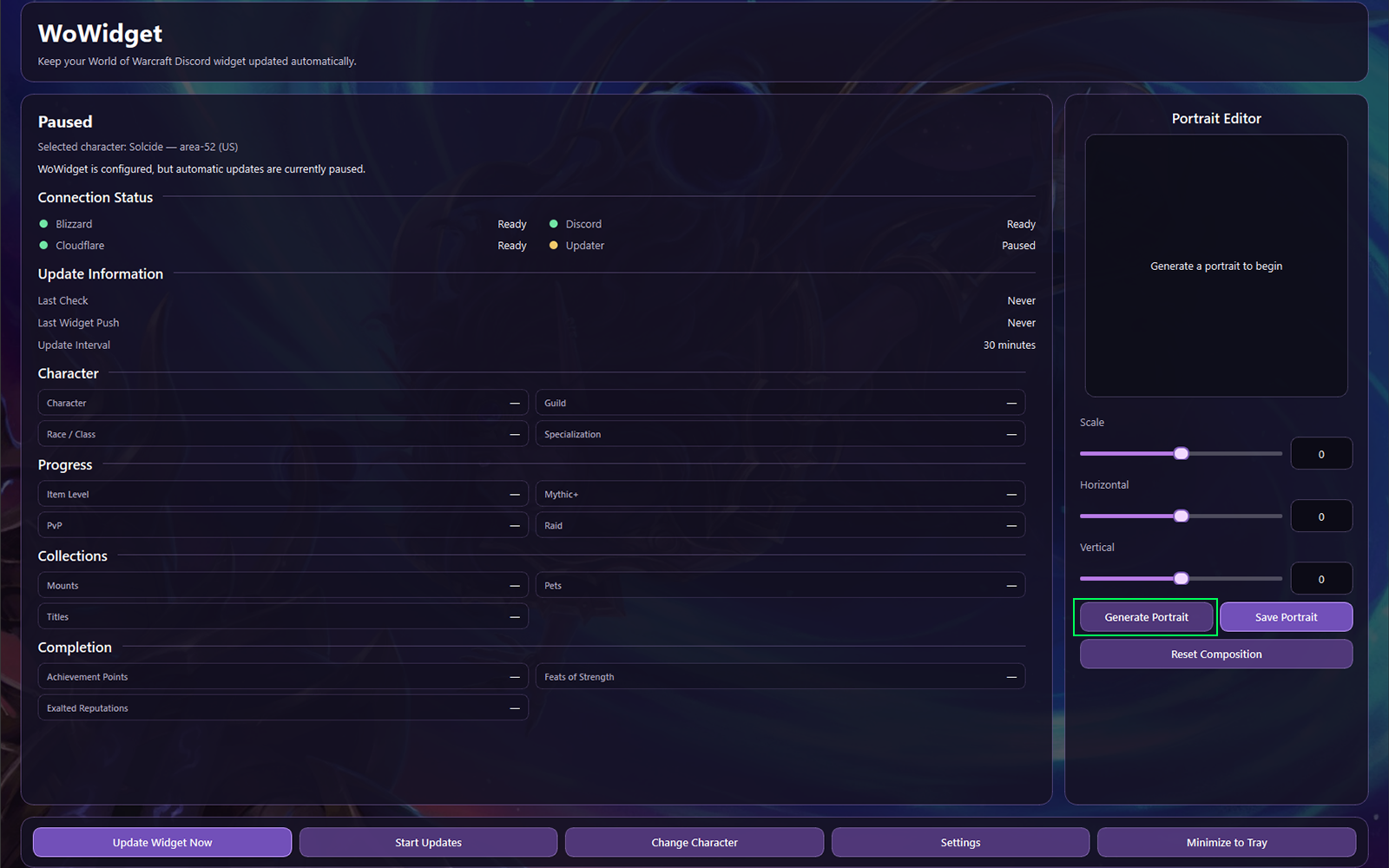
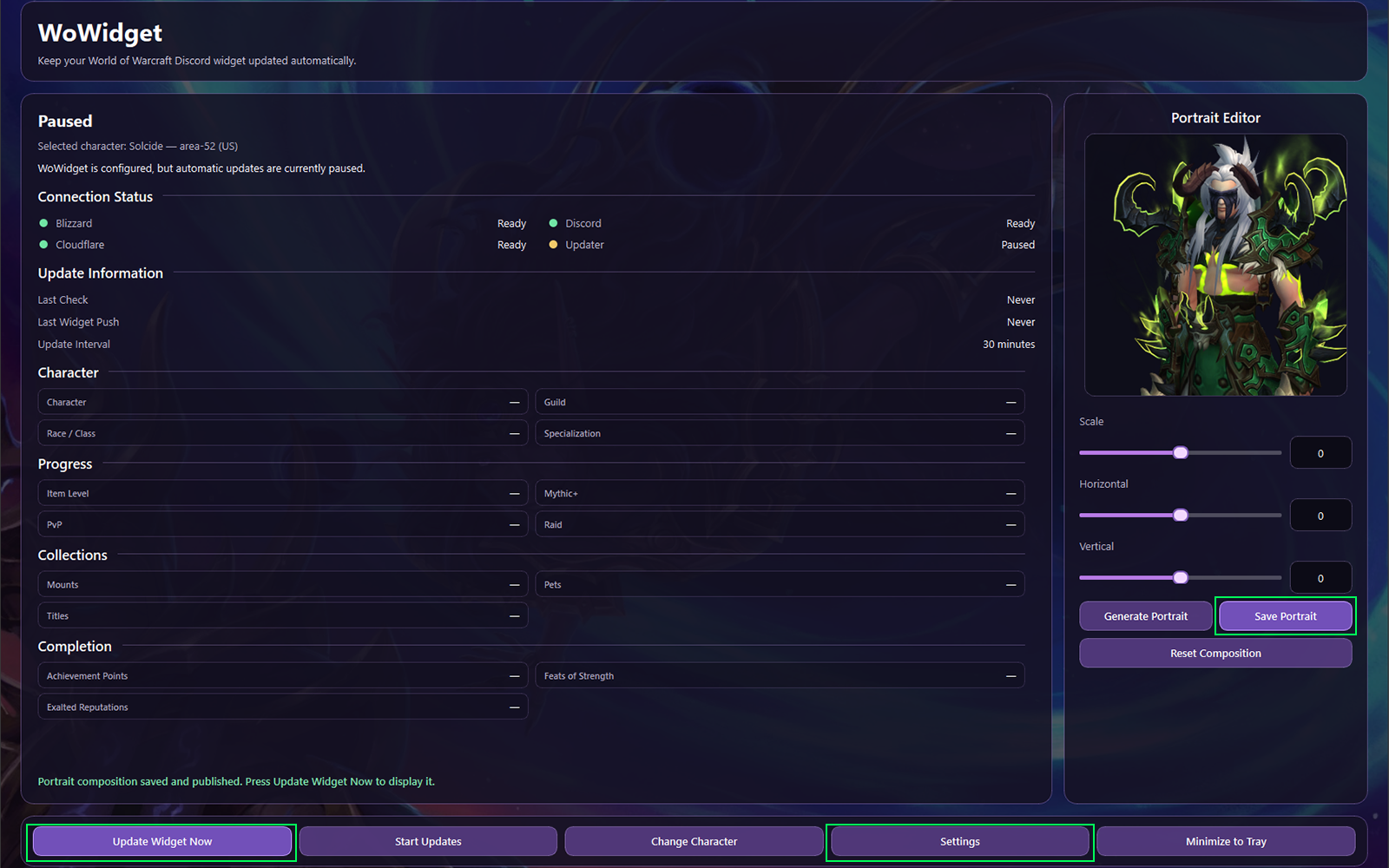
In Portrait Editor, select Generate Portrait. Reposition the character inside the crop area, select Save Portrait, then select Update Widget Now.
Portrait placement
Position the character near the upper-right edge of the crop box. The left side receives a fade effect, and anything outside the guide lines is cropped. You may save the portrait repeatedly until it looks right. The raw render only needs to be generated once per character because it is stored locally.
Configure background updates
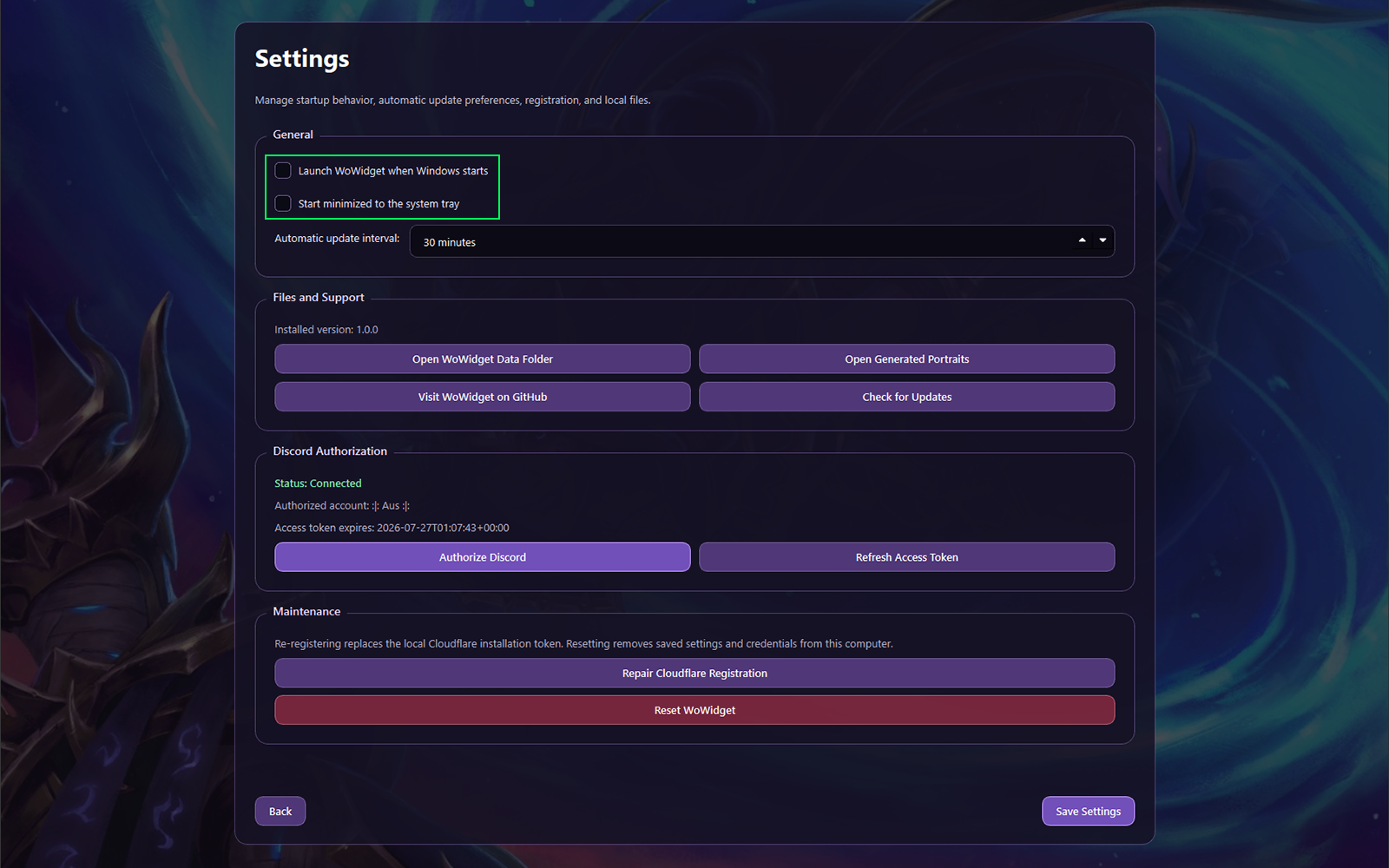
Open Settings. For the smoothest experience, enable Launch at Windows startup and Start application minimized. You can update manually or enable automatic updates and choose an interval.
For active play sessions, an interval between 30 minutes and 1 hour is a practical balance. WoWidget remains idle between scheduled checks and is designed to run unobtrusively in the background.
🎉 Setup complete
Your Discord profile now has a dynamically updating World of Warcraft widget. WoWidget can refresh it manually or automatically while the application runs.