Getting Started · Step 3 of 5
Discord Setup
Create the Discord application that owns your profile widget, configure OAuth, and enable Discord's experimental Widget Editor.
Before you begin
Open the Discord Developer Portal. Keep the temporary credential note from Blizzard Setup open, as you will add three Discord values to it.
Create a new application
Open Applications, select New Application, name it WoWidget, and select Create.
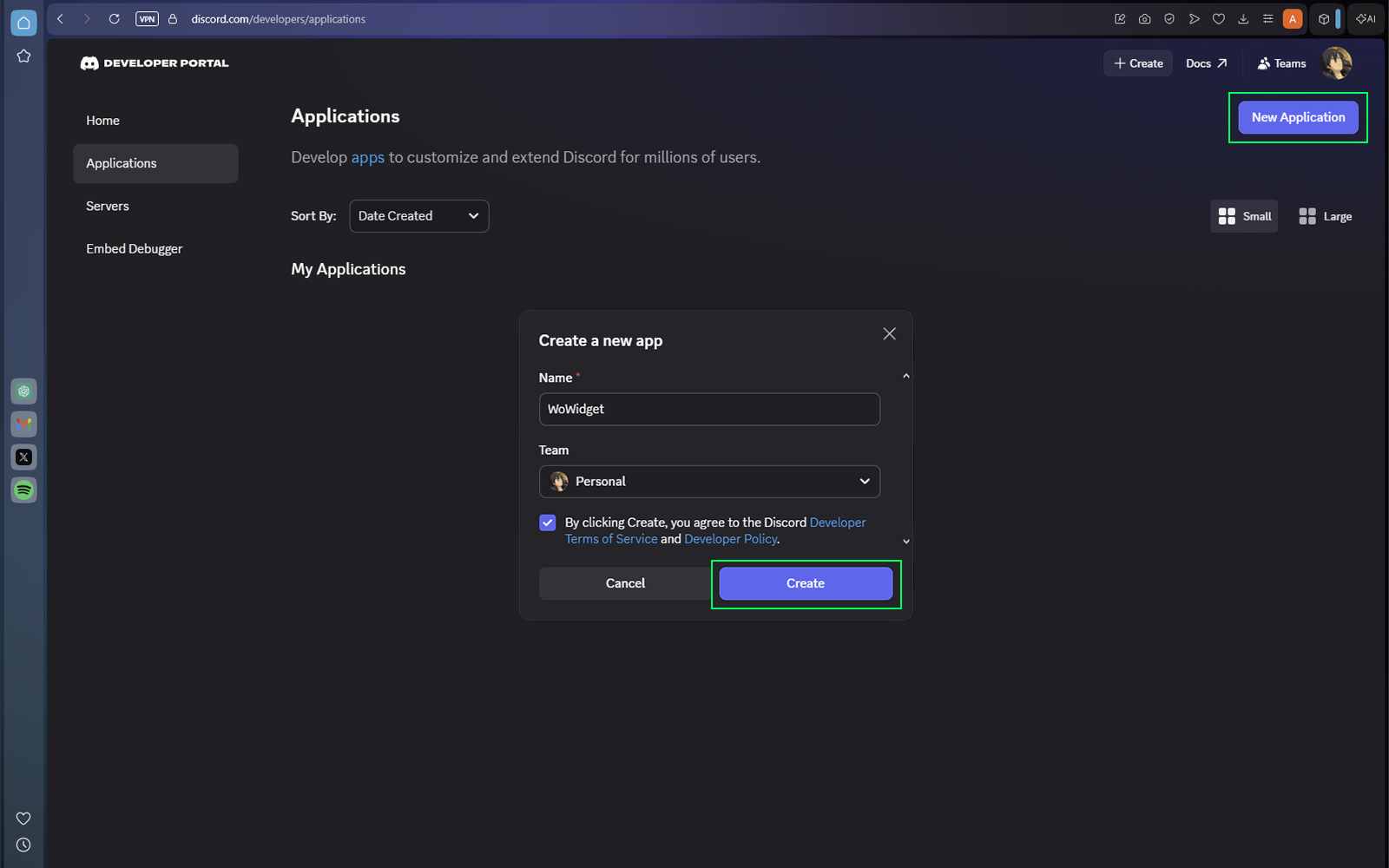
Choose a safe application name
The application name appears on your Discord profile widget. Use a normal, Terms-of-Service-compliant name. WoWidget is the recommended option, but you remain responsible for the name you publish.
Save the Application ID
Copy the Application ID into your temporary credential note. You may also upload an application icon now.
The icon is optional.
You do not need the Public Key for WoWidget.
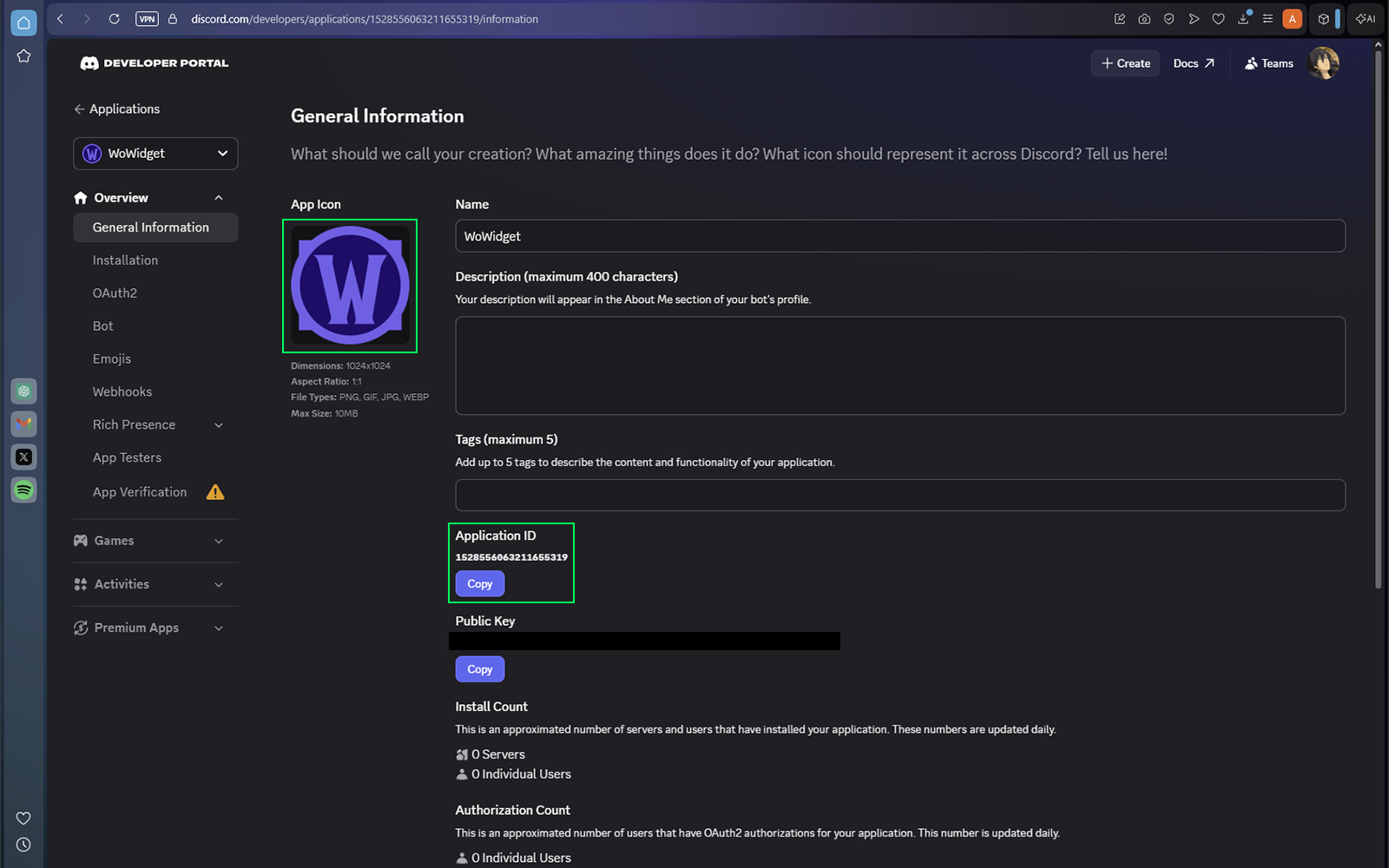
Customize your Discord application icon
WoWidget includes a built-in Icon Generator that lets you create a custom Discord application icon matching your preferred color theme.
Open Icon Generator from the WoWidget home screen, choose a color, then save the generated PNG and upload it to your Discord application's General Information → App Icon field.
Configure OAuth2
Open OAuth2, copy the Client Secret into your temporary credential note, and add both redirect URLs below. Select Save Changes.
http://discord.comhttp://127.0.0.1:5001/callback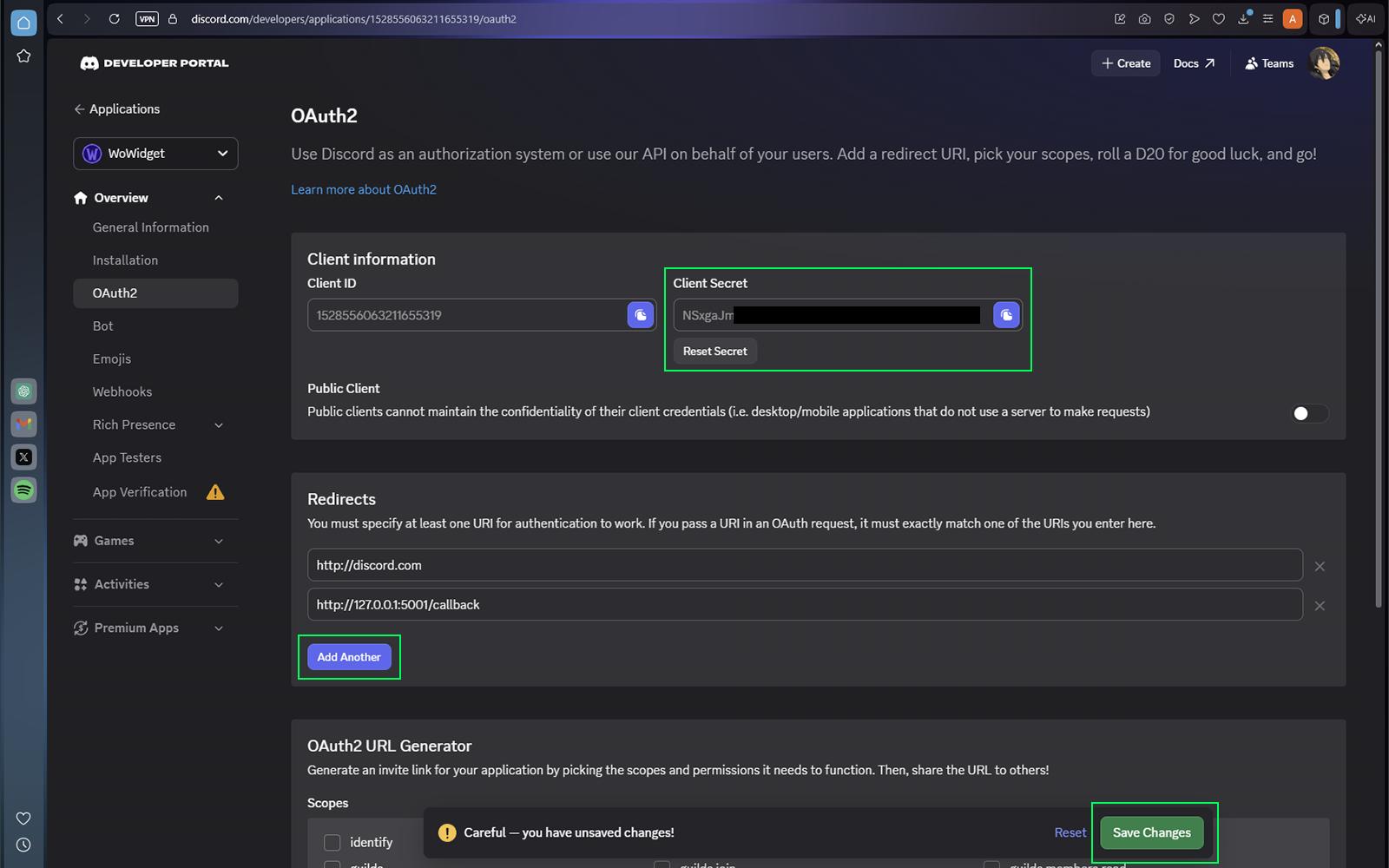
Generate a Bot Token
Open the Bot page, generate or reset the Bot Token, and copy it into your temporary credential note.
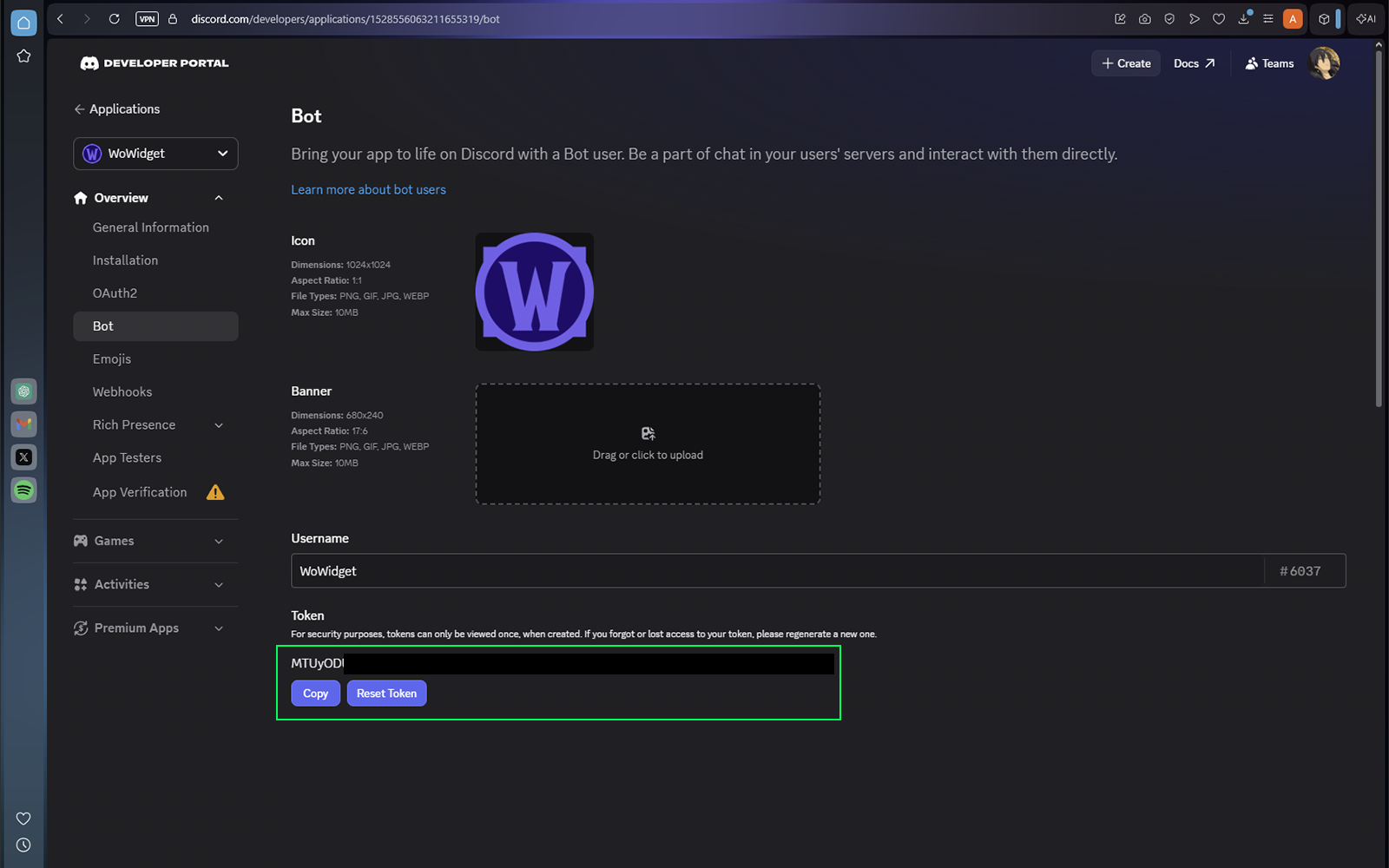
Protect Discord credentials
Never share the Client Secret or Bot Token. Do not expose either value in screenshots, GitHub commits, or support messages.
Complete the Social SDK form
Open Social SDK in the Games section. Complete the required fields, accept the Privacy Policy, and select Submit.
Most fields are informational. The Work Email field must use an email-shaped value such as name@example.com.
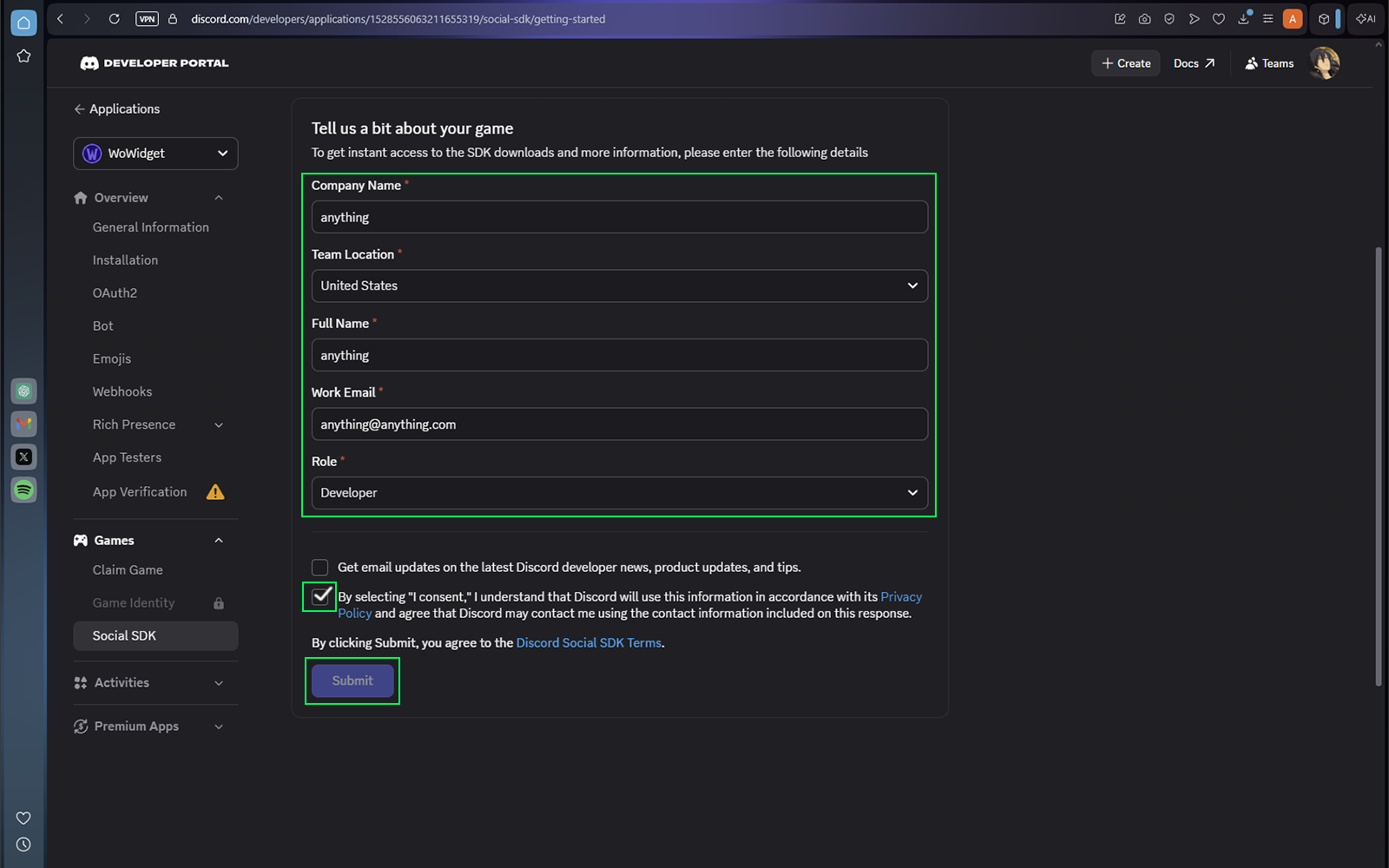
This step is required
If the Social SDK form is incomplete, Discord authorization may fail with The requested scope is invalid, unknown or malformed or display Discord Authorization Cancelled.
Enable the Experimental Widget Editor
Select the Discord Developer Portal's back arrow in the upper-left corner—not the browser Back button. From the Developer Portal home screen:
- Press Ctrl + Shift + I to open Developer Tools.
- Open the Console tab.
- Copy the command below, paste it into the Console, and press Enter.
- Confirm that the console returns
undefined. - Close Developer Tools and reopen your application.
Enable Widget Editor
Run this command once from the Developer Portal home screen.
let _mods = webpackChunkdiscord_developers.push([[Symbol()],{},r=>r.c]);
webpackChunkdiscord_developers.pop();

let findByProps = (...props) => {
    for (let m of Object.values(_mods)) {
        try {
            if (!m.exports || m.exports === window) continue;
            if (props.every((x) => m.exports?.[x])) return m.exports;

            for (let ex in m.exports) {
                if (props.every((x) => m.exports?.[ex]?.[x]) && m.exports[ex][Symbol.toStringTag] !== 'IntlMessagesProxy') return m.exports[ex];
            }
        } catch {}
    }
}

findByProps("getAll").getAll().find(e=>e.getName() === "ApexExperimentStore").createOverride("2026-03-widget-config-editor", 1)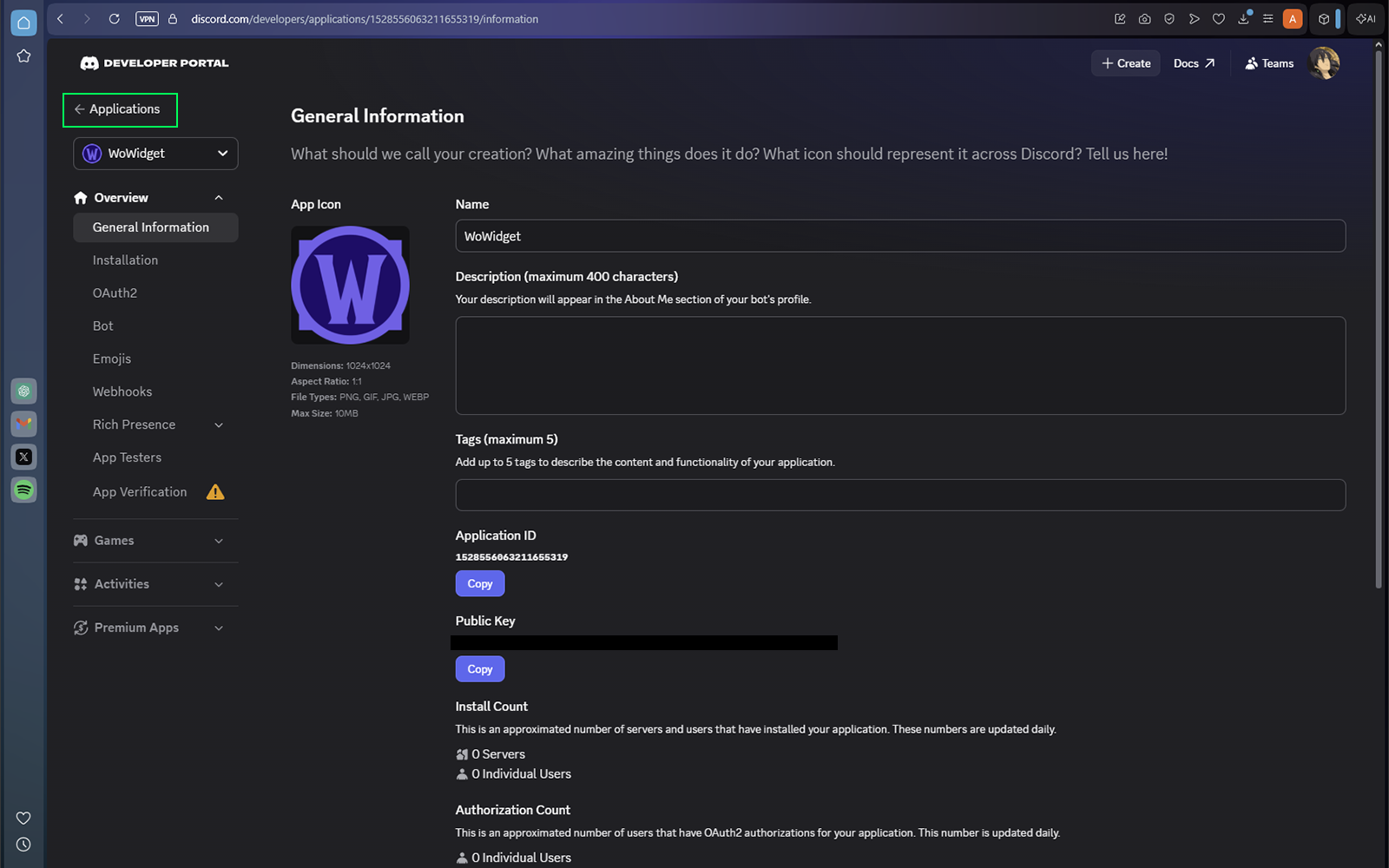
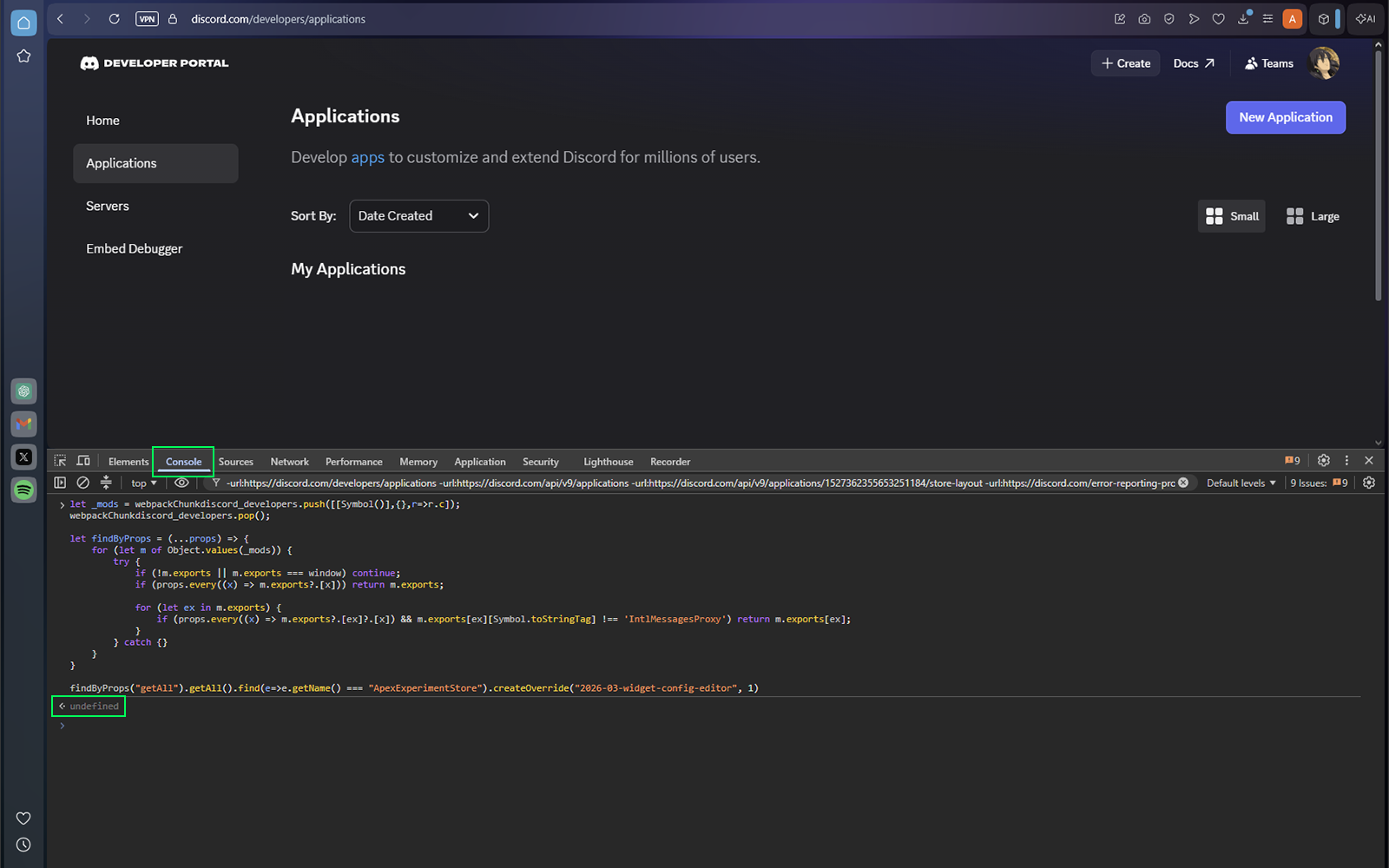
Type Allow Pasting
If this is your first time using the developer console on the Discord Dev Portal, you may be required to type allow pasting before you can paste the enablement command. You only need to do this the first time, and the browser will remember your preference in the future.
Developer Console safety
Never paste code into a browser console unless you understand or trust its source. You can verify the safety of this command by searching "how to enable the experimental widget feature in discord dev portal" on Google.
Do not refresh yet
Refreshing the Developer Portal before publishing may remove access to the experimental Widget Editor. Repeat this step if the Widget section disappears. After your widget is published, you may safely close the site.