Using WoWidget
Updating Your Widget
Send an immediate refresh, configure automatic updates, and understand when new World of Warcraft data appears on your Discord profile.
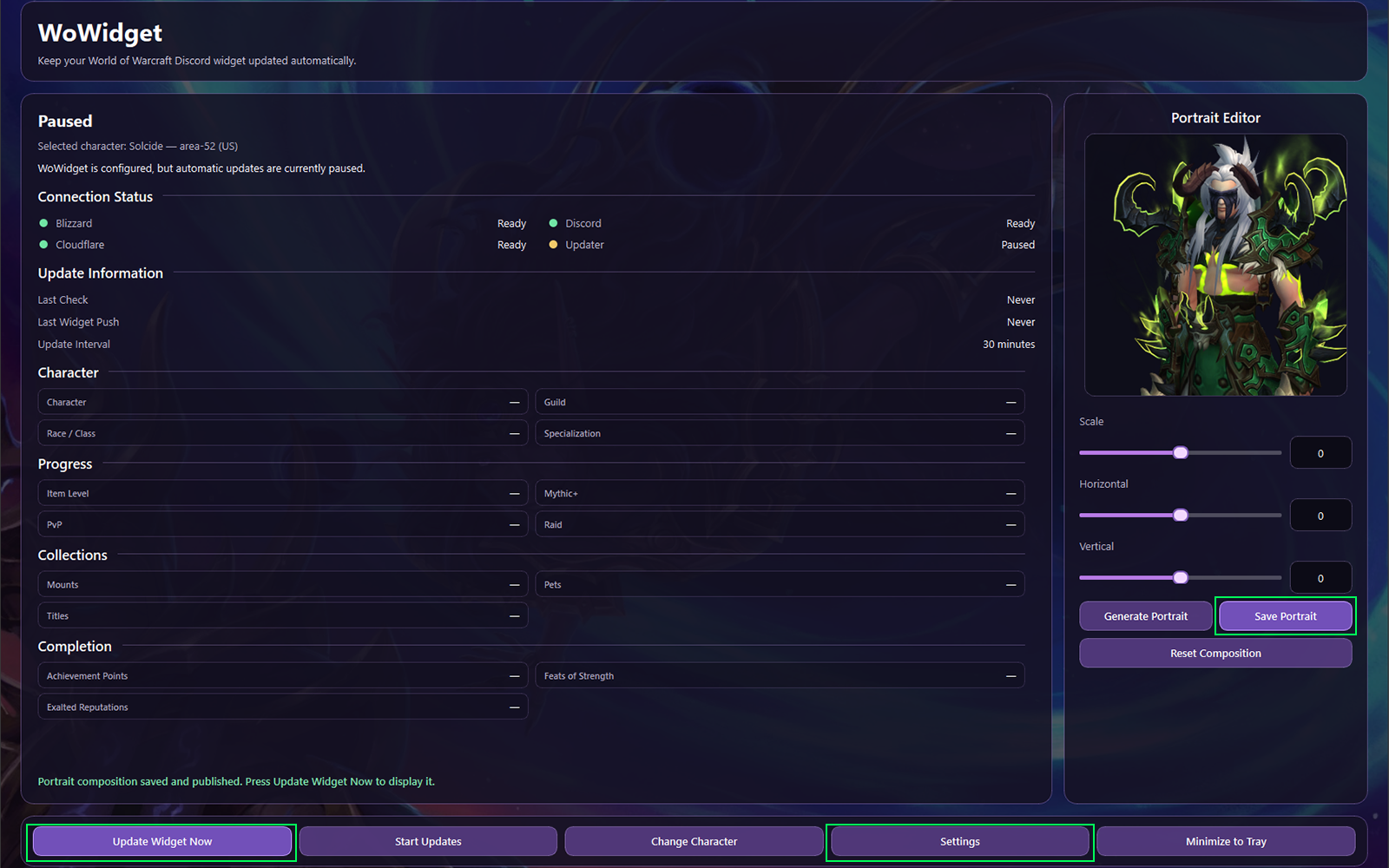
Run a manual update
Select Update Widget Now whenever you want WoWidget to request current character information and send a fresh payload to Discord.
A manual update is useful after changing characters, saving a new portrait, reaching a progression milestone, or adjusting the variables configured in Discord's Widget Editor.
Configure automatic updates
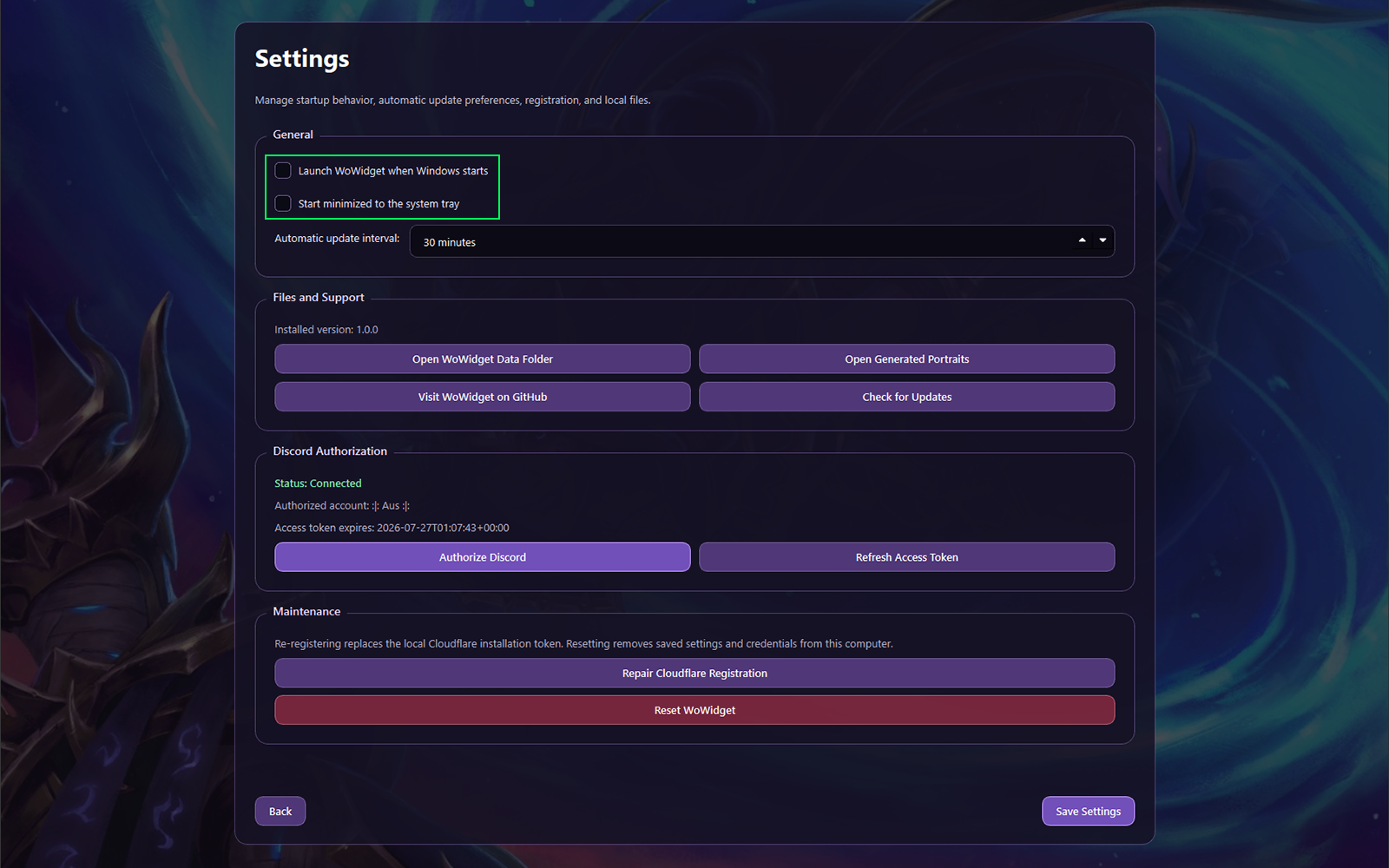
Open Settings, enable automatic updates, and choose the interval that fits how often you play. WoWidget remains idle between checks and updates only while the application is running.
What gets updated
Each update rebuilds the values used by the published Discord widget. The exact statistics visible on your profile depend on the fields you selected in the Widget Editor.
Confirm the result
Check the update status
Confirm that the application reports a successful refresh rather than a validation, Blizzard, or Discord error.
Open your profile
View the Board tab and inspect the published widget. Discord may take a short time to display the newest values.
Run the quick checks
Restart WoWidget, confirm the selected character, and review the Troubleshooting guide for stale-data or authorization issues.
Reference
Browse every widget field
Use the variable reference when configuring or changing the statistics displayed by Discord.